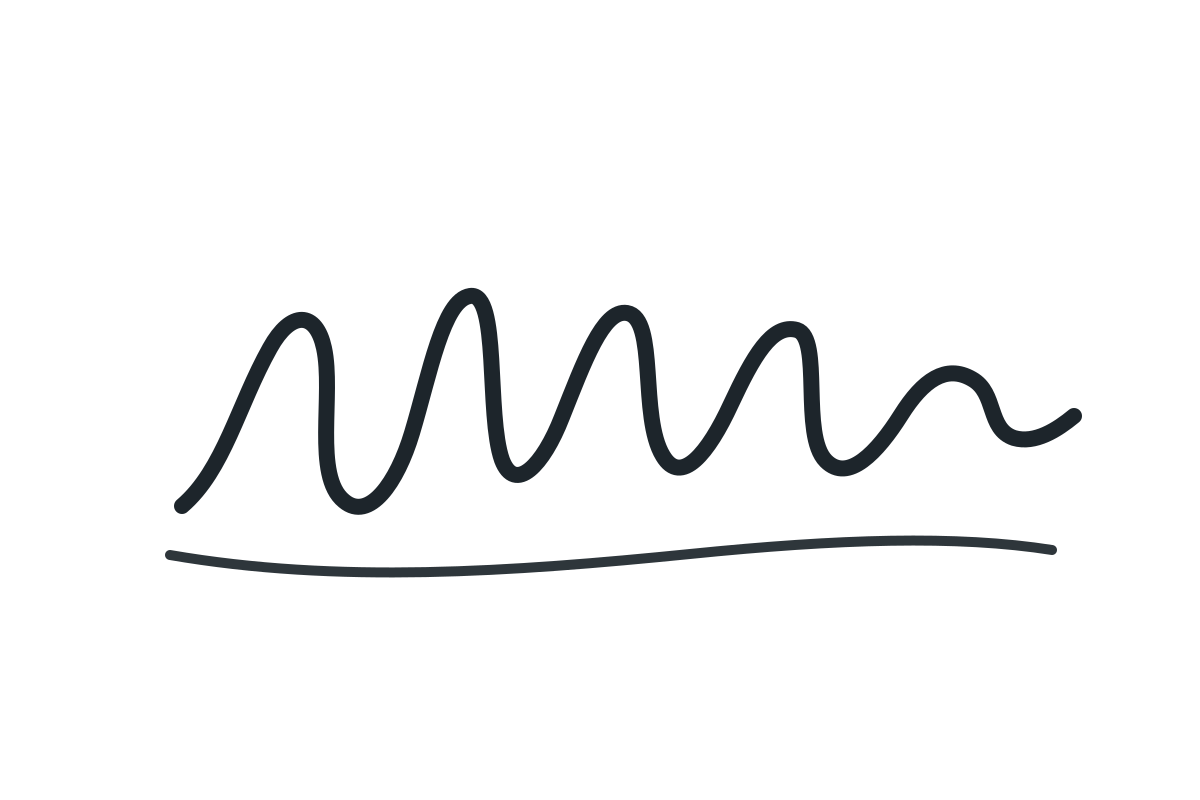
Use an existing handwritten signature image in Word, PDF, email, contracts, and forms without carrying the paper background into the file.
·9-minute read
A signature image for documents works best as a reviewed transparent PNG: remove the paper from a clear photo or scan, check the ink on light and dark backgrounds, then insert the image at the correct size in Word, PDF, email, or a form. This guide starts after the background-removal step and explains placement, review, file handling, and the limits of an image compared with an electronic signature.
A reviewed transparent PNG lets the document show through around the existing ink.
What a signature image for documents is
A signature image for documents is a picture of existing handwriting prepared for reuse. The useful file keeps the visible ink while the paper, scanner tone, desk color, and ordinary shadows around it become transparent. That lets the mark sit over a document line or email footer without a white rectangle.
The image is a practical asset, not a new signature or a signing certificate. Prepare it once, review the loops and fine strokes, and keep the source photo beside the approved PNG. When a document system requires identity checks, an audit trail, or a qualified electronic signature, use that system separately.
Use a transparent PNG when the page behind the ink must remain visible.
Keep the untouched photo or scan so a reviewer can compare a pale stroke later.
Treat image placement and document approval as two separate steps.
Prepare the source before you place a signature image
Start with the cleanest source you can obtain. Use plain paper, dark ink, even light, and a camera or scanner that shows the thinnest stroke. Keep the complete signature inside the crop with a small margin around loops, dots, underlines, and the final stroke. Cropping too tightly can make a correct result look clipped.
When taking a phone photo, hold the camera parallel to the page and avoid flash glare, a hand shadow, folded paper, and a colored desk. A flatbed scan at a sensible resolution can be easier to clean than a skewed photo. Do not sharpen or redraw the signature before background removal; those edits can turn paper texture into false ink.
Source condition
Recommended preparation
Why it helps
Dark ink on plain light paper
Photograph or scan the full mark with a small margin.
The tonal difference makes paper detection easier.
Thin blue or ballpoint ink
Use even light and keep the original at full size.
Light pressure changes are easier to protect during cleanup.
Gray scanner tone or ruled paper
Use a scan/photo mode and inspect the result at 100%.
Lines and page tone can otherwise be mistaken for ink.
Glare, folds, or desk shadows
Retake the image when possible; keep the old file for comparison.
Reflections can overlap pale strokes and create false edges.
Once the source is ready, the conversion is short. Work from the original, keep the result preview visible, and make one change at a time. The aim is a recognizable signature with the paper removed, not the most aggressive possible mask.
1
Upload one clear image
Choose or drop a JPG, PNG, or WebP file. Wait for the source preview so you can confirm that the full handwriting is visible before processing.
2
Start with a balanced cleanup
Use the normal or auto mode for dark ink on light paper. Choose a fine-ink or scan-focused mode when the image contains thin strokes, gray tone, or a soft shadow.
3
Compare original and transparent states
Move the before-and-after divider or use its keyboard controls. Check loops, crossings, dots, underlines, and the first and last strokes against the source.
4
Export as PNG
Select the transparent PNG download. Do not switch to JPG after export, because JPG fills transparent pixels with a solid background.
5
Keep the source with the approved result
Name the files clearly and store them together. If a document review later reveals a missing mark, you can return to the source instead of recreating the handwriting.
A checkerboard preview proves that some pixels are transparent, but it does not prove that the edges are clean. Place the PNG over white, medium gray, and near-black surfaces. White can hide leftover paper; dark gray exposes a pale halo, gray fog, rough edge, or a light stroke that disappeared.
Zoom into the counter-shapes inside loops first, then inspect crossings, dots, stroke ends, and long underlines. Automatic removal can fill an enclosed paper area or trim an isolated pale mark. Compare the visible shape with the original at a useful zoom rather than judging only the thumbnail.
Inspect the result on both light and dark backgrounds.
Check loops, dots, crossings, stroke ends, and underlines at 100% or 200%.
Keep the original file so another reviewer can compare the approved shape.
A transparent result should preserve the ink shape while allowing the page underneath to remain visible.
Place the signature image in Word, PDF, email, and forms
In Microsoft Word or Google Docs, insert the PNG as an image, keep its aspect ratio locked, and resize it from a corner over the intended line. A transparent background prevents the paper rectangle from covering nearby text. Check the image again after resizing because a small, blurry source can look worse when enlarged.
In a PDF editor, add the PNG as a graphic or image object and confirm that the page line, fill, or shading remains visible around it. For email signatures and design layouts, use a sensible display width and keep the original high-quality file outside the email composer. Compression applied by an email platform can change edge quality.
Destination
Practical check
Common mistake
Word or Google Docs
Lock the aspect ratio and keep the signature on the intended line.
Stretching the image makes handwriting look unnaturally wide.
PDF form or contract
Check the page at normal zoom and after export.
A white rectangle or low-resolution edge can reappear in the final PDF.
Email or design file
Use a modest display width and test on a colored background.
Oversized images load slowly or reveal a halo after platform compression.
A signature image can be sensitive even when it is used for a draft. Upload only the crop needed for the task, remove unrelated names or account numbers, and keep a local copy of the original. The selected file remains in the browser until you submit or remove it; a submitted image travels through the configured processing provider so a result can be returned.
The site does not intentionally write the submitted image into account, order, or usage tables, but a provider may create temporary upload files, task records, or result links needed to finish processing. Review the Privacy Policy before uploading material covered by a confidentiality rule, and avoid describing an online workflow as a zero-network process.
Upload only the image area needed for background removal.
Keep the source locally and read the Privacy Policy before processing confidential material.
Use a separate signing system when identity, consent, audit, or revocation is required.
These answers cover transparent PNG placement, Word and PDF workflows, email use, privacy, and the boundary between an image and an electronic signature.
How do I use a signature image for documents in Word?
Insert the transparent PNG as a picture, resize it from a corner, choose the layout or wrap option that matches the line, and inspect the page at normal reading size before saving.
Can I use a signature image for documents in a PDF?
Most PDF editors let you add a signature image as an image object. Place it on the intended line, keep the proportions, and confirm whether the document must also use a separate electronic-signing workflow.
What file is best for a signature image?
A transparent PNG is usually the practical choice because it keeps the page visible around the ink. Keep the original JPG, PNG, or WebP source for comparison.
Can I add the image to an email signature?
Yes. Insert the reviewed PNG in the email signature editor, keep the displayed width modest, and test it on desktop and mobile so the image does not push the contact details out of alignment.
Is a signature image a legal electronic signature?
Not by itself. It is a reusable image that can be copied and pasted. Legal or organizational requirements may call for identity verification, consent, timestamps, or an audit trail from a signing service.
Quick checklist for a signature image for documents
Start with a clear complete source, remove the paper background, and review the transparent PNG over light and dark surfaces. Insert it at a readable size, keep the original file, and check the result again after resizing or exporting.
A signature image for documents solves an image-placement problem. It does not replace identity, consent, approval, or the electronic-signing controls required by the receiving organization.