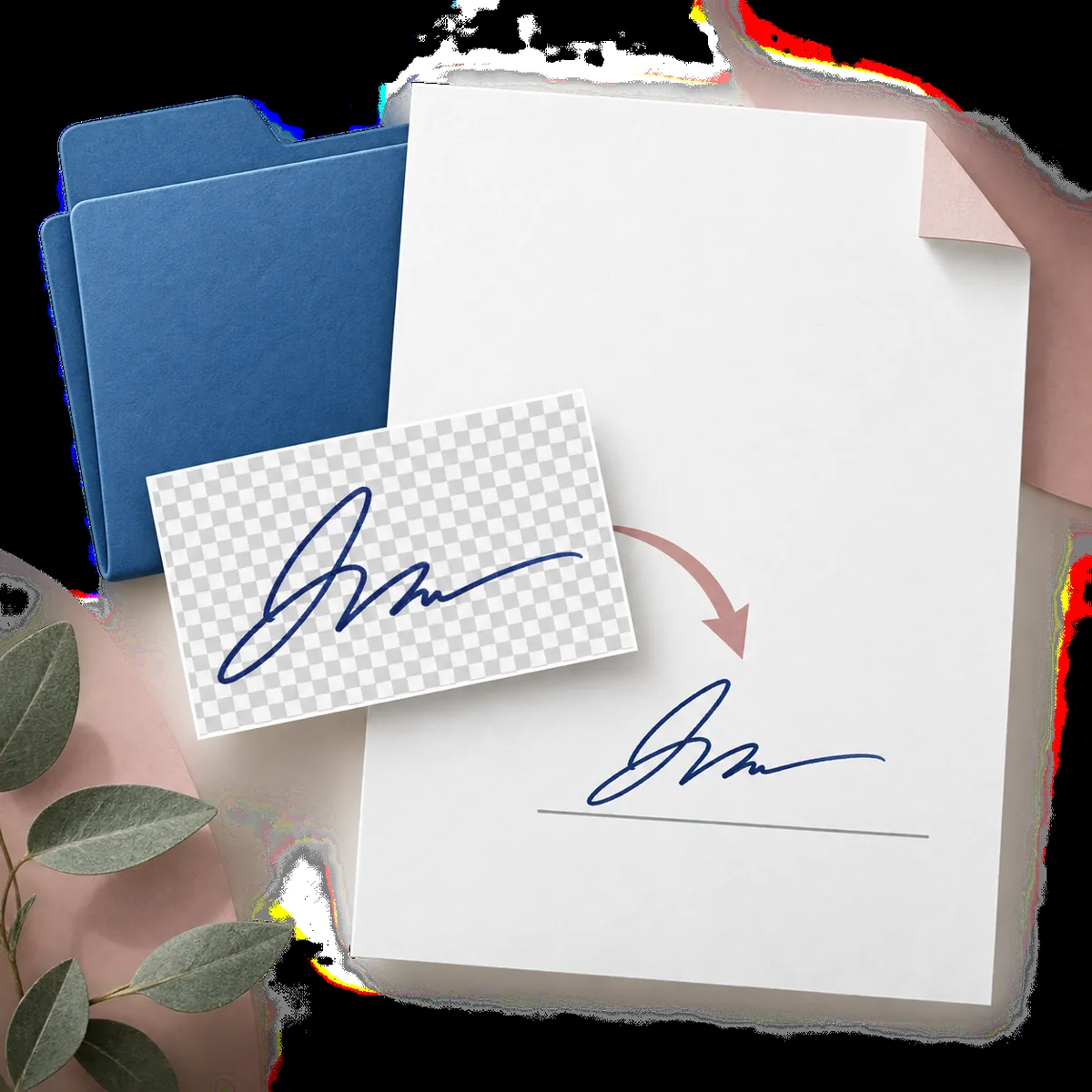
Turn a photo or scan of an existing handwritten signature into a reusable PNG that fits documents without a white rectangle.
·8-minute read
To make a transparent signature, capture the existing handwriting clearly, remove the paper pixels without cutting light strokes, export as PNG, and inspect the file over light and dark backgrounds. The result is an image asset for Word, PDF, email, or design work; it is not a new signature or proof of identity.
A transparent PNG lets an existing signature sit over a document line without carrying the photographed paper around it.
What a transparent signature PNG is
A transparent signature PNG is a picture of existing handwriting with the surrounding paper made see-through. The ink remains visible, while white paper, scanner tone, desk color, and ordinary shadows are removed from the pixels around it. This lets the signature sit over a form line, a colored document, or an email footer without a rectangular patch.
PNG matters because it can store an alpha channel: each pixel can be opaque, partly transparent, or fully transparent. JPEG cannot store that information, so a JPG signature keeps a rectangular background even when the page behind it is a different color. Keep the original photo or scan beside the PNG so you can compare a faint loop or finishing stroke later.
It preserves an existing handwritten mark instead of generating a replacement.
It is useful when the same approved image must be placed in several documents or layouts.
It should be reviewed on more than one background before it is used in an important file.
Prepare the photo or scan before removing the paper
Start with the cleanest source you can obtain. Use plain paper, dark ink, even light, and a camera or scanner that shows the thinnest stroke. Keep the complete signature inside the crop with a small margin around loops, dots, underlines, and the final stroke. Cropping too tightly can make a correct result look clipped.
When taking a phone photo, hold the camera parallel to the page and avoid flash glare, a hand shadow, folded paper, and a colored desk. A flatbed scan at a sensible resolution can be easier to clean than a skewed photo. Do not sharpen or redraw the signature before background removal; those edits can turn paper texture into false ink.
Source condition
Recommended preparation
Why it helps
Dark ink on plain light paper
Photograph or scan the full mark with a small margin.
The tonal difference makes paper detection easier.
Thin blue or ballpoint ink
Use even light and keep the original at full size.
Light pressure changes are easier to protect during cleanup.
Gray scanner tone or ruled paper
Use a scan/photo mode and inspect the result at 100%.
Lines and page tone can otherwise be mistaken for ink.
Glare, folds, or desk shadows
Retake the image when possible; keep the old file for comparison.
Reflections can overlap pale strokes and create false edges.
Once the source is ready, the conversion is short. Work from the original, keep the result preview visible, and make one change at a time. The aim is a recognizable signature with the paper removed, not the most aggressive possible mask.
1
Upload one clear image
Choose or drop a JPG, PNG, or WebP file. Wait for the source preview so you can confirm that the full handwriting is visible before processing.
2
Start with a balanced cleanup
Use the normal or auto mode for dark ink on light paper. Choose a fine-ink or scan-focused mode when the image contains thin strokes, gray tone, or a soft shadow.
3
Compare original and transparent states
Move the before-and-after divider or use its keyboard controls. Check loops, crossings, dots, underlines, and the first and last strokes against the source.
4
Export as PNG
Select the transparent PNG download. Do not switch to JPG after export, because JPG fills transparent pixels with a solid background.
5
Keep the source with the approved result
Name the files clearly and store them together. If a document review later reveals a missing mark, you can return to the source instead of recreating the handwriting.
A checkerboard preview proves that some pixels are transparent, but it does not prove that the edges are clean. Place the PNG over white, medium gray, and near-black surfaces. White can hide leftover paper; dark gray exposes a pale halo, gray fog, rough edge, or a light stroke that disappeared.
Zoom into the counter-shapes inside loops first, then inspect crossings, dots, stroke ends, and long underlines. Automatic removal can fill an enclosed paper area or trim an isolated pale mark. Compare the visible shape with the original at a useful zoom rather than judging only the thumbnail.
Inspect the result on both light and dark backgrounds.
Check loops, dots, crossings, stroke ends, and underlines at 100% or 200%.
Keep the original file so another reviewer can compare the approved shape.
A transparent result should preserve the ink shape while allowing the page underneath to remain visible.
Place the PNG in Word, PDF, email, or design files
In Microsoft Word or Google Docs, insert the PNG as an image, keep its aspect ratio locked, and resize it from a corner over the intended line. A transparent background prevents the paper rectangle from covering nearby text. Check the image again after resizing because a small, blurry source can look worse when enlarged.
In a PDF editor, add the PNG as a graphic or image object and confirm that the page line, fill, or shading remains visible around it. For email signatures and design layouts, use a sensible display width and keep the original high-quality file outside the email composer. Compression applied by an email platform can change edge quality.
Destination
Practical check
Common mistake
Word or Google Docs
Lock the aspect ratio and keep the signature on the intended line.
Stretching the image makes handwriting look unnaturally wide.
PDF form or contract
Check the page at normal zoom and after export.
A white rectangle or low-resolution edge can reappear in the final PDF.
Email or design file
Use a modest display width and test on a colored background.
Oversized images load slowly or reveal a halo after platform compression.
A signature image can be sensitive even when it is used for a draft. Upload only the crop needed for the task, remove unrelated names or account numbers, and keep a local copy of the original. The selected file remains in the browser until you submit or remove it; a submitted image travels through the configured processing provider so a result can be returned.
The site does not intentionally write the submitted image into account, order, or usage tables, but a provider may create temporary upload files, task records, or result links needed to finish processing. Review the Privacy Policy before uploading material covered by a confidentiality rule, and avoid describing an online workflow as a zero-network process.
Upload only the image area needed for background removal.
Keep the source locally and read the Privacy Policy before processing confidential material.
Use a separate signing system when identity, consent, audit, or revocation is required.
These answers cover source images, PNG transparency, quality checks, document placement, privacy, and the boundary between image cleanup and electronic signing.
What is a transparent signature PNG?
It is an image of existing handwriting with the surrounding paper pixels made transparent. The ink remains visible, but it does not verify identity or create a legal electronic signature.
Can I turn a scanned signature into a transparent PNG?
Yes. Use a clear JPG, PNG, or WebP scan, keep a margin around the complete mark, remove the paper, and inspect thin strokes before downloading.
Why should I use PNG instead of JPG?
PNG supports transparent pixels. JPG always stores a rectangular background, so the signature can show inside a white box when it is placed over a colored page.
How do I make a signature transparent without losing thin lines?
Start with dark ink and even lighting, use a conservative cleanup mode, compare the result with the original, and inspect loops, dots, crossings, and finishing strokes at useful zoom.
Can I use the PNG in Word or a PDF?
Yes. Insert it as an image, keep the aspect ratio locked, and review the page after resizing and exporting. The document's own approval and signing controls still apply.
Quick checklist for a transparent signature PNG
Use the clearest photo or scan, leave room around every stroke, remove the paper gradually, and export PNG rather than JPG. Check the result over light and dark backgrounds, compare it with the original, and keep both files together.