
New Online signature background remover

Signature Background Remover Online

Use this signature background remover to remove the paper background from a handwritten signature and create a clean transparent image in seconds. Upload a photo or scan, review the edges, and download a signature PNG for documents and design.

  • Transparent PNG output
  • JPG, PNG, and WebP input
  • Ready for PDFs, Word, and email

Upload Your Signature

Drag & drop or click to upload

Supports JPG, PNG, and WebP · Max 10MB
Cleanup options

Privacy note Your selected image stays in this browser until you submit or remove it. Submitted images are sent to the configured processing provider; retention details are explained in the Privacy Policy. Read the Privacy Policy

Try an example:

Signature background removal examples

Make a Signature Transparent for Everyday Workflows

Use the aligned before-and-after examples to see how a signature background remover handles paper, blue ink, soft shadows, and scanned images. Each comparison keeps the signature shape aligned so you can judge the visible strokes before uploading your own image.

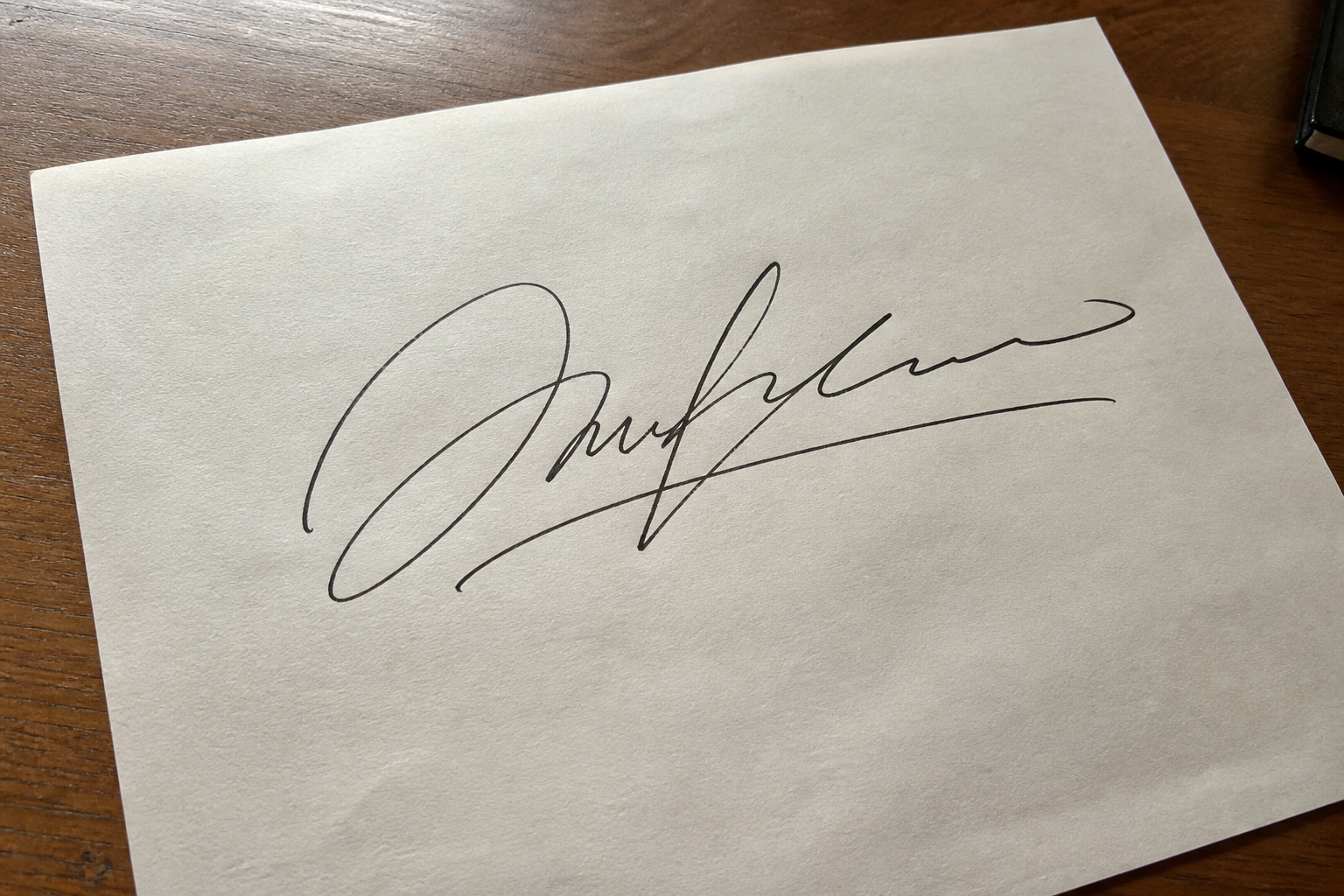
Black handwritten signature photographed on textured paper before background removal
Black handwritten signature isolated on a transparent background
Original Transparent

Example

Remove the paper background from a signature

A natural paper photo shows how the tool separates dark ink from warm paper texture. Compare the edge around the first and last strokes before you download.

Check thin strokes, edges, and small gaps before downloading.
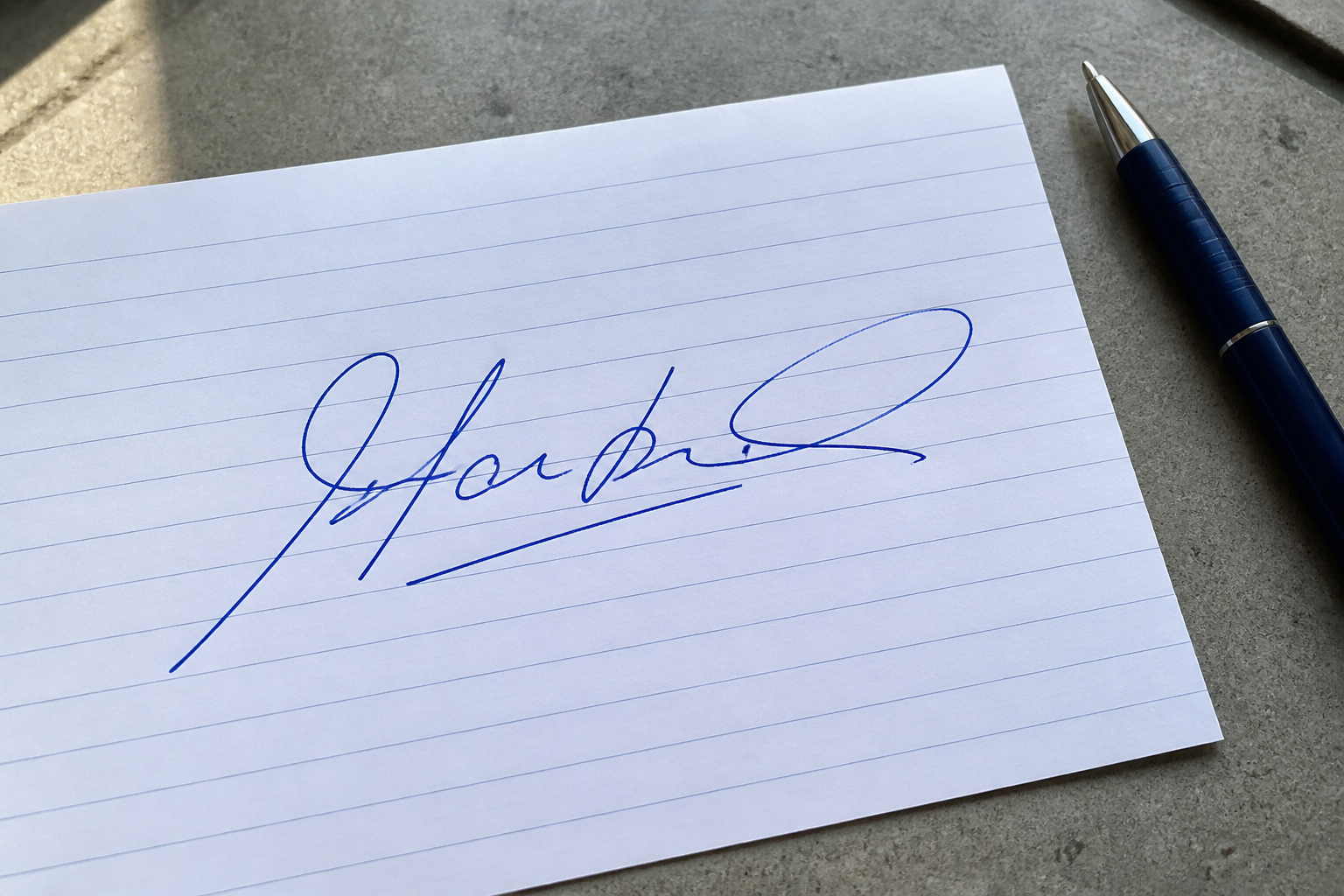
Blue ink handwritten signature photographed on lined paper before background removal
Blue ink handwritten signature on a transparent background
Original Transparent

Example

Make a blue ink signature transparent

Fine Ink mode is useful when the signature has thin blue strokes or pressure variation. The goal is to keep the ink color and natural line weight while removing the lined paper.

Check thin strokes, edges, and small gaps before downloading.

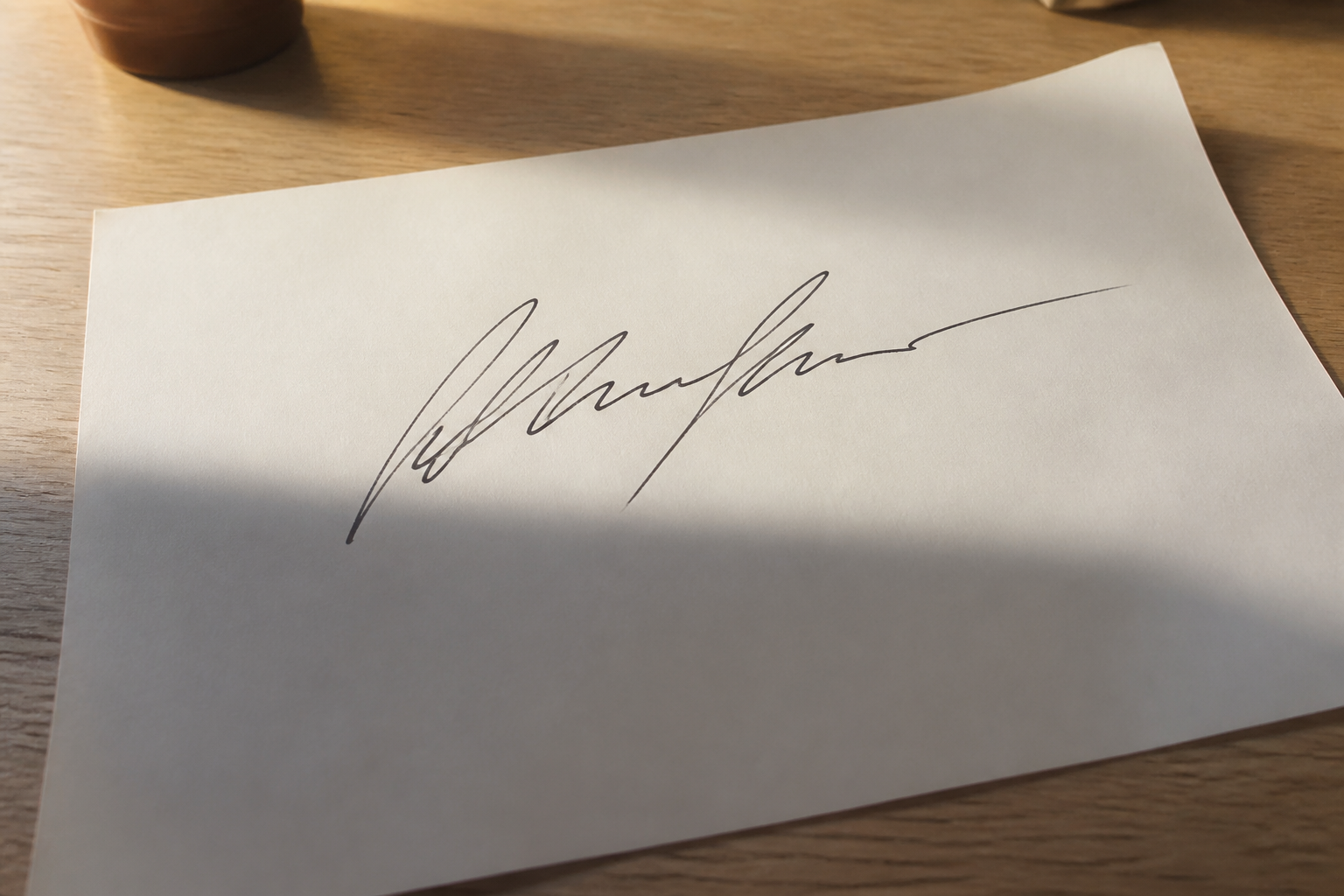
Handwritten signature photographed on paper with a warm desk shadow before background removal
Handwritten signature with the desk shadow and paper removed on transparency
Original Transparent

Example

Clean a photographed signature with a soft shadow

Photo / Scan mode helps separate visible ink from a gray cast, warm desk light, and uneven paper tone. Use Balanced cleanup first so small loops and light strokes remain readable.

Check thin strokes, edges, and small gaps before downloading.
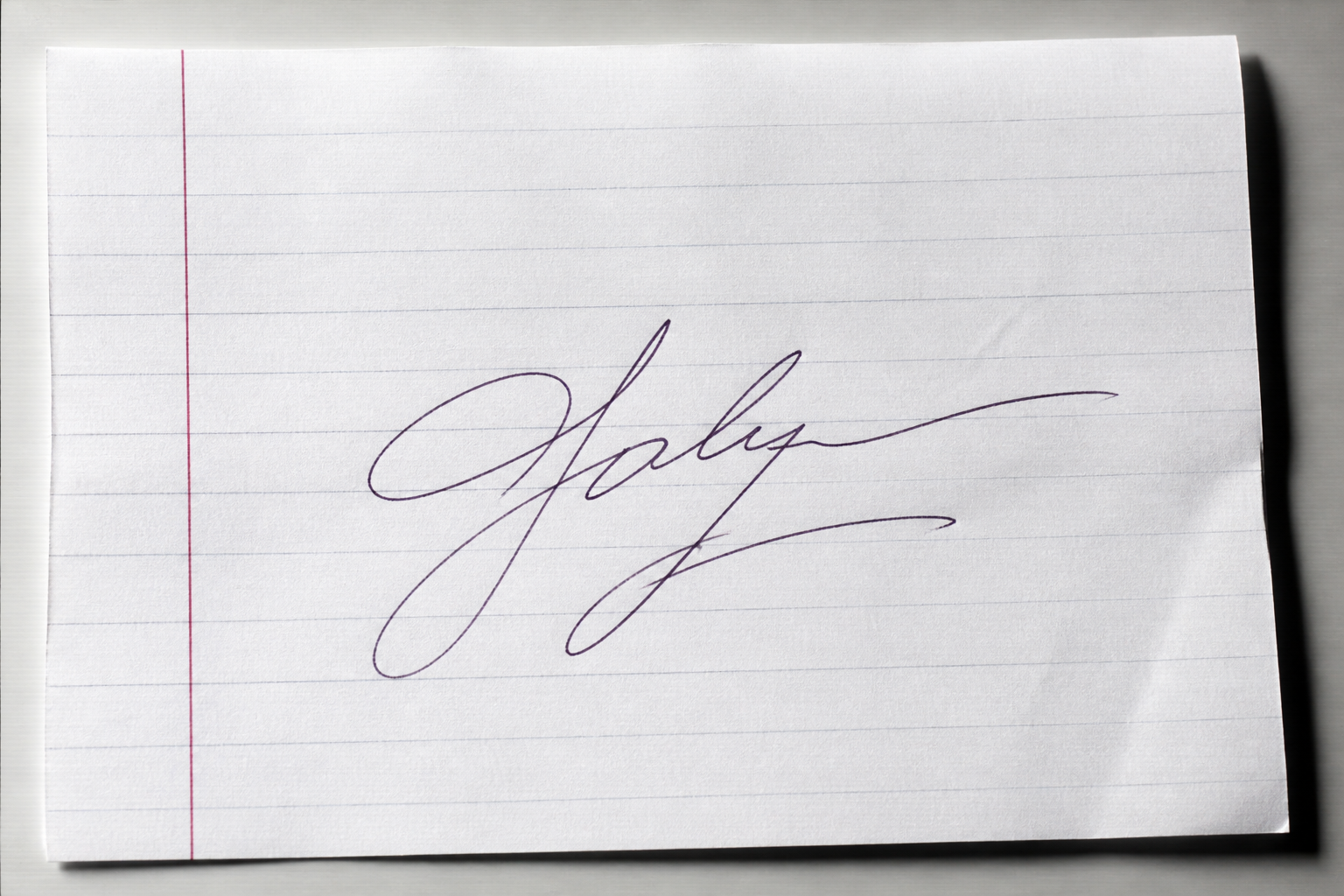
Scanned handwritten signature with ruled paper, red margin, and paper texture before background removal
Scanned handwritten signature prepared as a transparent image
Original Transparent

Example

Prepare a signature PNG for Word or PDF

This scan includes ruled lines, a red margin, and page-edge shadows. After downloading the transparent PNG, insert it into Word, a PDF editor, an email signature, or a design file.

Check thin strokes, edges, and small gaps before downloading.

How to remove the background from a signature

How to Make a Signature Transparent in Four Steps

To remove background from a signature online, start with a clear photo or scan, keep the cleanup conservative, inspect the result, and download only when the visible ink looks right. This signature background remover prepares an image of an existing signature; it does not generate, verify, or erase a legal signature.

  1. 01

    Upload a photo or scan

    Choose one JPG, PNG, or WebP image up to 10MB. Drag and drop, browse your device, paste an image, or use the camera on a supported mobile browser.

  2. 02

    Choose a cleanup mode

    Start with Auto for a typical paper photo. Use Fine Ink for light or thin strokes, or Photo / Scan for uneven paper tone, soft shadows, and scanned texture.

  3. 03

    Compare original and transparent

    Drag the before-and-after curtain or use the arrow keys to inspect the signature shape, thin lines, loops, edges, and small gaps against the transparent result.

  4. 04

    Download the transparent PNG

    Select Download Transparent PNG when the result looks usable. Insert it into Word, a PDF editor, email, or a design file, and keep the original image for reference.

Better transparent signature results

Prepare the image before you remove a signature background

The source image determines which ink details can be preserved. These checks help the signature background remover distinguish handwriting from paper, glare, folds, and gray scan noise. A clear original also makes the before-and-after comparison easier to trust.

Use strong ink contrast

Dark black or blue ink on a lighter surface is easier to separate than a pale pen, a faded photocopy, or a signature photographed against a dark desk.

Show the full signature

Include the complete signature with a little space around the first and last strokes. Tight crops can cut off loops or make the edge harder to judge.

Reduce glare and folds

Photograph the page in even light and keep it flat when possible. Strong glare, creases, and deep paper shadows can overlap with light ink.

Review fine strokes

Start with Balanced cleanup and check thin lines, dots, crossings, and pressure changes. A stronger setting is not always better for a delicate signature.

What signature background removal changes

How Signature Background Remover Keeps the Ink

This signature background remover focuses on the image background around an existing signature. Use the comparison view to decide whether the visible ink, line weight, and edge quality are suitable for your next document or design step.

Preserve thin strokes

The cleanup prompt prioritizes visible handwriting, including narrow lines, loops, crossings, and natural pressure variation. Always inspect light strokes before download.

Remove paper and gray shadows

The remover treats white paper, gray scan tone, soft cast shadows, and ordinary image noise as background signals rather than part of the signature.

Keep the original signature shape

The workflow is for extracting an existing image, not redrawing or stylizing it. Keep the source file and compare the result if a line looks missing or changed.

Use the PNG in document workflows

A transparent signature image can be placed over a white or colored page in Word, PDF editors, email layouts, and design tools without a visible paper rectangle.

Transparent signature use cases

Ready for PDFs, Word, Email, and Design

A signature background remover turns a photographed or scanned page into a reusable transparent signature PNG for everyday document and design workflows. Use the cleaned image as an asset while keeping the original file for reference.

PDF forms

Place the transparent PNG over a signature area in a PDF editor without carrying a white paper rectangle into the form.

Word documents

Insert the cleaned signature image into Word letters, templates, and drafts, then resize it while keeping the visible ink easy to inspect.

Contracts and invoices

Prepare a reusable signature image for document workflows, and keep your organization’s approval and signing process separate from image editing.

Certificates and forms

Add a transparent signature to certificates, internal forms, and printable layouts where the original paper background would look out of place.

Email signatures

Use a clean transparent image in an email signature block so the signature blends with the message background instead of showing a paper-colored box.

Design files

Bring the PNG into presentations, mockups, and design tools when you need the handwriting without the photographed page around it.

Signature Background Remover FAQ

Remove Background From Signature: Common Questions

Direct answers about free use, transparent PNG output, photos and scans, document workflows, privacy, and the difference between preparing a signature image and creating a legal electronic signature.

Can I remove the background from my signature for free?

You can upload a supported signature image and review the result before downloading. Sign-in and available credits may be required to run processing.

Can I make a signature transparent online?

Yes. Upload a photo or scan, choose Remove Background, compare the original with the transparent result, and download the processed image.

Can I download a transparent PNG?

The tool is designed for transparent PNG output so the signature can be placed over documents, email layouts, and design files without a paper-colored rectangle.

Does it work with a photo or scanned signature?

Yes. JPG, PNG, and WebP photos or scans are supported up to 10MB. Clear images with visible ink and useful contrast usually produce the easiest results to review.

What formats and file sizes are supported?

The current tool accepts one JPG, PNG, or WebP image at a time, with a maximum file size of 10MB. HEIC, PDF, and batch uploads are not part of this release.

How do I use the result in Word or PDF?

Download the transparent PNG, insert it as an image in Word or a PDF editor, resize it, and review the visible ink before sharing the document.

Does the tool store uploaded signatures?

The selected file stays in your browser until you submit or remove it. Submitted images are sent to the configured processing provider and are not written to the site's account, order, or usage tables. See the Privacy Policy for provider retention details.

Is this a legal electronic signature?

No. This tool prepares an image of an existing handwritten signature. It does not verify identity, create legal signing consent, certify a document, or guarantee compliance with a particular law or policy.

Does this remove a signature from an already signed document?

No. It isolates an existing signature image from its paper or photo background. It is not designed to erase, alter, or conceal a signature in a completed document.

Ready to make your signature transparent?

Remove the paper background and keep the ink

Use the signature background remover to process a photo or scan, compare the original with the transparent result, and download a signature PNG when the visible strokes look right. Keep the original file for reference.

Need more signature edits?

Continue processing signatures

Your current processing allowance is used. Open Pricing to choose an available credit or subscription option.

Keep your workflow moving

  • Create more transparent signature PNGs
  • Process additional photos or scans
  • Reuse the result in document workflows

Each completed signature background removal uses 2 credits. The full Pricing page shows the current options and billing details.

Full pricing details

Choose credits for your next signature

View full pricing

View monthly credits and one-time packs on the separate Pricing page. The homepage keeps the upload workflow focused and does not display plan cards.

View full pricing

Sign in to Signature Background Remover

Access your signature processing usage, account, and billing history.

Your photo is sent for processing only after you submit it.