Signature Background Removal: Remove Paper and Scan Noise
Learn how to tell paper, gray scan tone, shadows, and ruled lines apart before you clean an existing handwritten signature.
·10-minute read
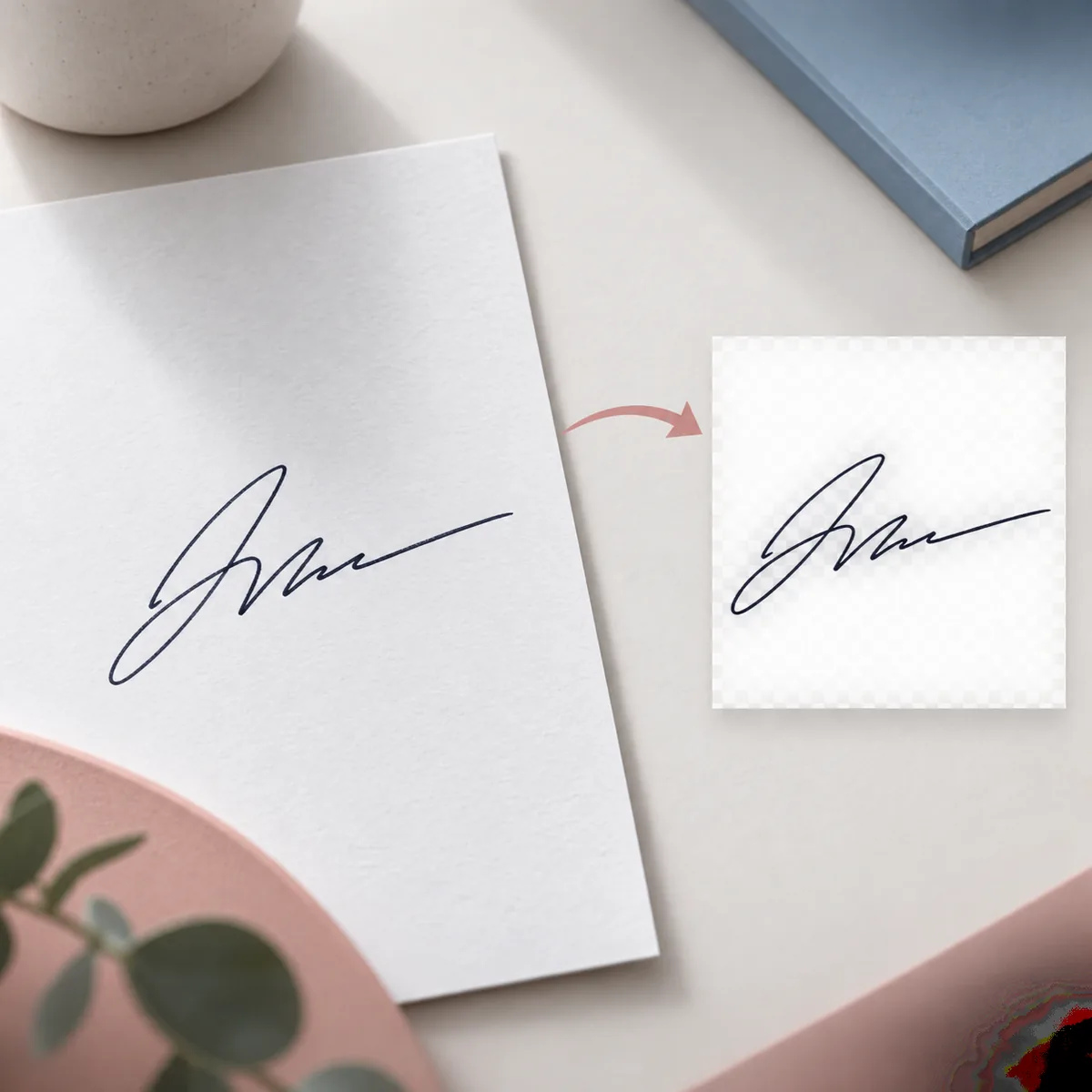
Signature background removal separates visible ink in an existing handwritten signature from paper, lighting, and scan noise. The reliable result is a transparent PNG that keeps loops, crossings, pressure changes, and pale edges while removing the page. This guide covers background diagnosis, source preparation, conservative cleanup, and result review before you place the image in a document. Use the homepage tool to process one JPG, PNG, or WebP image.
The useful target is the visible ink with the paper around it made transparent, not a newly drawn signature.
Identify the paper or scan background before cleaning
The background type changes what a good result looks like. Plain white paper is mostly a contrast problem, while a gray scan has a broad tone that can sit close to light ink. A desk shadow is darker on one side, ruled paper adds repeated lines, and camera glare can wash out a stroke. Look at the original at full size before uploading and name the strongest problem in your notes. That simple diagnosis makes it easier to choose a mild mode and explain a disappointing result. If the page itself contains text, stamps, or colored marks near the signature, crop to the smallest useful area without touching the first or last stroke. Removing unrelated content lowers the chance that the processor mistakes it for part of the signature.
Background you see
What to check
Best preparation
White paper
A pale rectangle or paper grain remains around the ink.
Use even light and leave a small margin around the full writing.
Gray scanner tone
Light strokes are close in brightness to the page.
Keep the original at high resolution and choose a conservative cleanup.
Desk or phone shadow
One side of the paper is darker than the other.
Retake the photo with diffuse light when possible.
Ruled lines or folds
Repeated lines cross or touch signature strokes.
Crop carefully and compare every crossing after processing.
Glare or colored cast
A bright patch hides ink or changes its color.
Move the light source and photograph the page parallel to the camera.
Good signature background removal starts before the file reaches the tool. Flatten the page, place it on a simple surface, and use light from both sides instead of a hard lamp directly above the paper. Hold a phone parallel to the page so the signature is not stretched toward one corner. A scan should be sharp enough to show thin strokes without heavy compression blocks. Crop away unrelated text, but leave breathing room around the full signature so the processor can distinguish an edge from a cut-off stroke. JPG, PNG, and WebP are useful source formats for this flow; converting a tiny blurry screenshot into a larger file will not restore detail. If the only source is weak, keep it as an honest reference and expect to review the result closely rather than trusting a single preview.
Use the clearest original photo or scan available.
Keep the entire first and last stroke inside the frame.
Avoid glare, folded paper, colored desks, and phone shadows.
Save the untouched source before making a crop or export.
Once the source is ready, use a short repeatable process instead of changing many settings at once. Start with the lightest cleanup that removes the page, then compare the output with the original. The comparison matters more than a smooth-looking thumbnail because a narrow loop or pressure change can disappear at small size. The homepage tool provides an example state before upload, a selected-file preview, processing feedback, and a result state with a transparent preview. Those states let you separate a demo from your own image and make it easier to recover from an invalid or oversized file.
1
Upload one source image
Choose one JPG, PNG, or WebP file, or use the supported drag-and-drop or camera path. Wait for the preview and confirm that the whole signature is visible.
2
Choose a conservative mode
Use Auto for a normal paper photo, Fine Ink for narrow or pale strokes, or Photo / Scan when the page has uneven tone, lines, or a soft shadow.
3
Compare the original and transparent states
Move the before-and-after divider and inspect the start, loops, crossings, dots, and final stroke at a useful zoom.
4
Download only after the review
Select the transparent PNG download when the ink still matches the source. Keep both files together and record which version was checked.
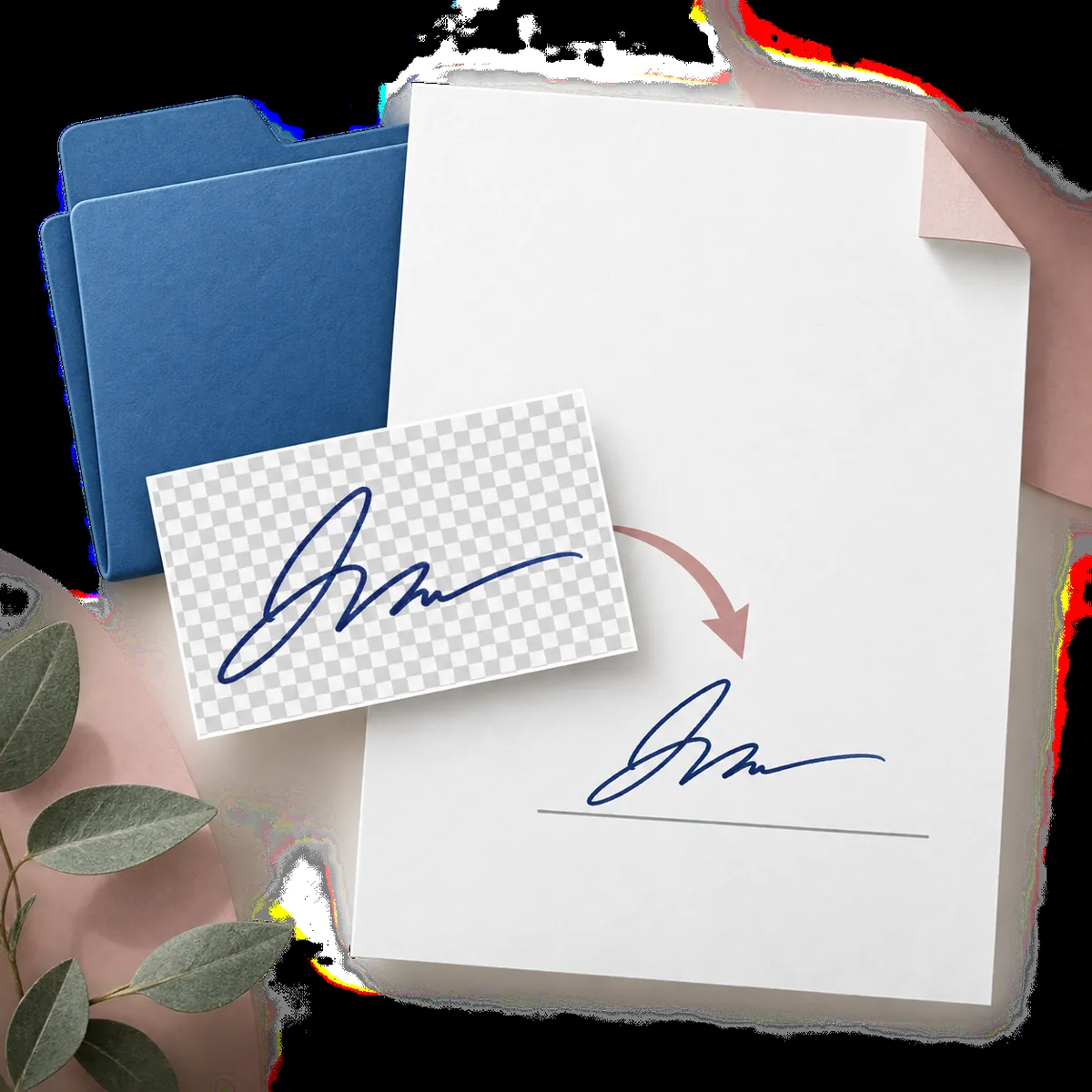
The transparent result should behave like an image layer that can sit over a document without a paper rectangle.
A transparent PNG is easiest to reuse because it carries the ink without the paper rectangle. In Word, insert it as a picture, resize from a corner, and use the document layout controls to position it over the intended line. In a PDF editor, add it as an image or stamp-like object and check the page at normal reading size. In email or design software, avoid enlarging a small phone photo so much that blur becomes the new problem. Keep a clear filename for the source and the reviewed output, and do not overwrite the original. The image step should remain separate from the business or legal step: a document system may still require identity, approval, audit, or an approved electronic-signing method.
Use PNG when the surrounding page or design needs to show through.
Check the result again after resizing or placing it on a new background.
Keep the original source and the reviewed transparent file together.
Follow the receiving document system's approval and signing rules.
A signature image can be sensitive even when it is being prepared for a draft. The file you choose stays in the browser until you remove it or submit it. On submission, it travels through the configured Worker and image-processing provider so a result can be produced. The site does not intentionally write the submitted image into account, order, or usage tables, but a provider may create temporary upload files, task records, or result links needed to finish the request. Read the Privacy Policy before uploading material governed by an organization's confidentiality rules. Crop away unrelated information, keep a local copy of the original, and avoid treating an online tool as a zero-network workflow. The page covers image preparation only; it does not erase a signature from a completed document or decide whether a signing method is legally sufficient.
Upload only the image needed for the background-removal task.
Keep the source locally and review the provider-retention details in the Privacy Policy.
Use a separate signing or approval system when identity, consent, or audit controls are required.
These answers cover paper and scan backgrounds, supported files, transparent PNG output, document use, privacy, and the boundary between image cleanup and electronic signing.
What does signature background removal do?
It separates visible ink in an existing handwritten signature from paper, scanner tone, shadows, and nearby background pixels so the surrounding area can become transparent. It does not create or verify a signature.
Can I remove a white paper background from a signature?
Yes. Start with a clear image, leave a margin around the complete writing, and inspect the result on a dark surface because leftover white paper is easiest to miss on a white page.
Does it work with a scanned signature?
It can work with a JPG, PNG, or WebP scan up to the current 10 MB limit. Gray scanner tone, ruled lines, and pale strokes need a careful review after processing.
Can I use the result in Word or a PDF?
Download the transparent PNG, insert it as an image, resize from a corner, and inspect it after placement. Keep the document's approval and signing controls separate from image editing.
Does the tool store uploaded signatures?
The selected file remains in the browser until you submit or remove it. Submitted images pass through the configured processing provider; read the Privacy Policy for provider retention and related data handling.
Is a cleaned signature PNG a legal electronic signature?
No. It is a reusable image of an existing signature. It does not verify identity, create consent, certify a document, or guarantee a particular legal or organizational requirement.
Does this erase a signature from an already signed document?
No. The workflow prepares a signature image from a source photo or scan. It is not designed to erase, alter, or conceal a signature in a completed document.
Quick checklist for signature background removal
Identify the strongest background problem, use the clearest source, and keep the complete signature inside the crop. Choose a conservative mode, compare the original and transparent states over light and dark surfaces, and inspect loops, crossings, fine strokes, and halos before downloading.
A successful signature background removal leaves a recognizable ink image with the paper around it transparent. Keep the source file beside the reviewed PNG, and treat document approval, identity, consent, and electronic-signing requirements as separate responsibilities.